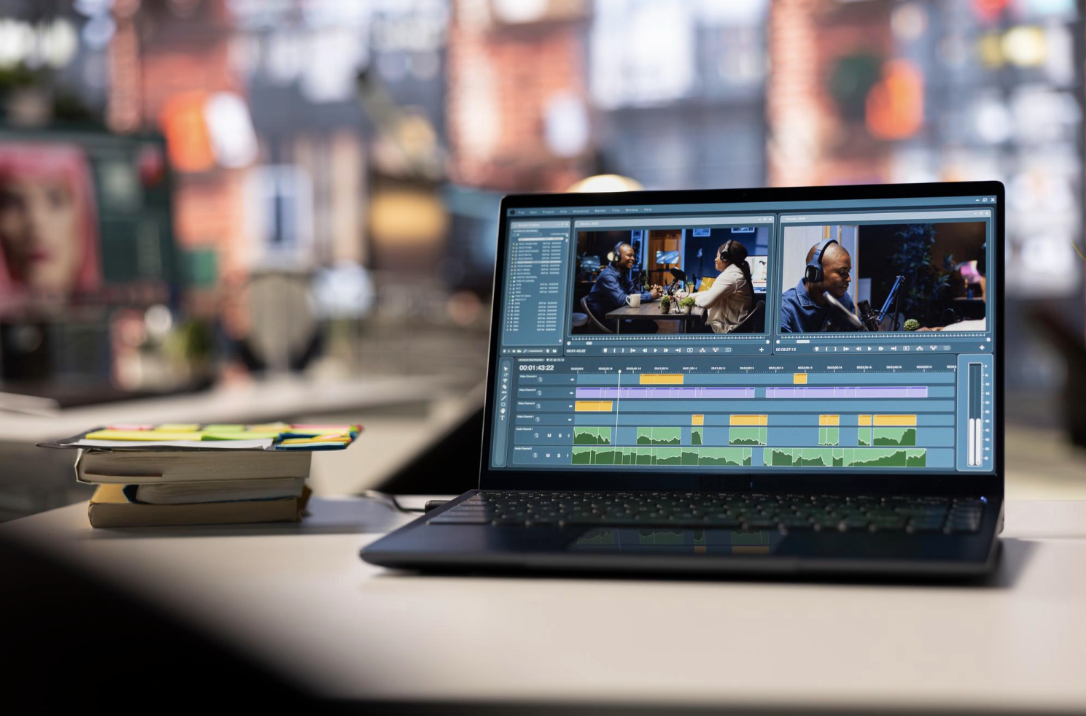
Choosing the best video editing software in 2026 depends on the work sitting in front of you. A 12-minute YouTube tutorial, a wedding film, a client ad, a course lesson, and a quick Reel all ask for different tools.
Some editors give you deep control over color and audio. Some save time on captions, silence removal, and vertical formats. Some are easier to learn when you need to finish a video today, not after a month of tutorials. Below are five strong options for different needs.
Async is an AI-powered video editor designed for creators who want to edit, enhance, and generate content in one place. Its timeline-based editor gives you the tools to arrange clips, trim scenes, add text, adjust audio, and make other edits without switching between different platforms.
The editor is especially useful when your workflow involves AI-generated content. Instead of generating a video in one tool and moving it into a separate editor, you can bring generated clips into the same workspace and continue refining them. Async also supports AI-powered editing through Async Intelligence, making it easier to make changes with natural-language instructions.
For creators working with short-form videos, social content, marketing videos, or AI-generated footage, having generation and editing tools in the same workspace can make the overall process more straightforward.
Pros: Async combines traditional video editing tools with AI features, so you can work with both regular and AI-generated footage in the same editor. The workflow is also convenient for creators who want to generate a clip and continue editing it without moving between multiple applications.
Cons: Async may not offer the same depth of advanced manual controls as professional desktop editors such as Final Cut Pro or DaVinci Resolve. Editors who need highly specialized color grading, complex audio workflows, or extensive timeline controls may still prefer a dedicated professional editing application.
DaVinci Resolve is the strongest all-in-one choice if you want editing, color correction, audio, visual effects, and delivery in one place. It works on Windows, macOS, and Linux, which makes it useful for mixed setups or creators who may switch computers later.
It is often treated as professional software, but the free version is generous enough for serious YouTube channels, short films, interviews, and business videos. If you need video editing software for PC that can grow with your skills, DaVinci Resolve is hard to ignore.
Its biggest strength is color work. Resolve started as a color grading tool, and that still shows. You get precise control over exposure, contrast, skin tones, masks, and color matching. The Cut page is useful for quick assembly, while the Edit page gives you a more traditional timeline.
The Fairlight audio section is also much deeper than basic volume sliders. You can clean dialogue, mix multiple tracks, and prepare sound for longer projects without opening another app.
Pros: DaVinci Resolve gives you a full editing setup without forcing you into a subscription. The free version is enough for many creators, especially those working in 4K or below. It also suits editors who want to learn color correction properly instead of relying on presets.
Cons: Resolve has many pages, panels, and modes, so beginners can feel lost at first. It also likes stronger hardware, especially if you work with high-resolution files, noise reduction, Fusion effects, or heavy color grades.
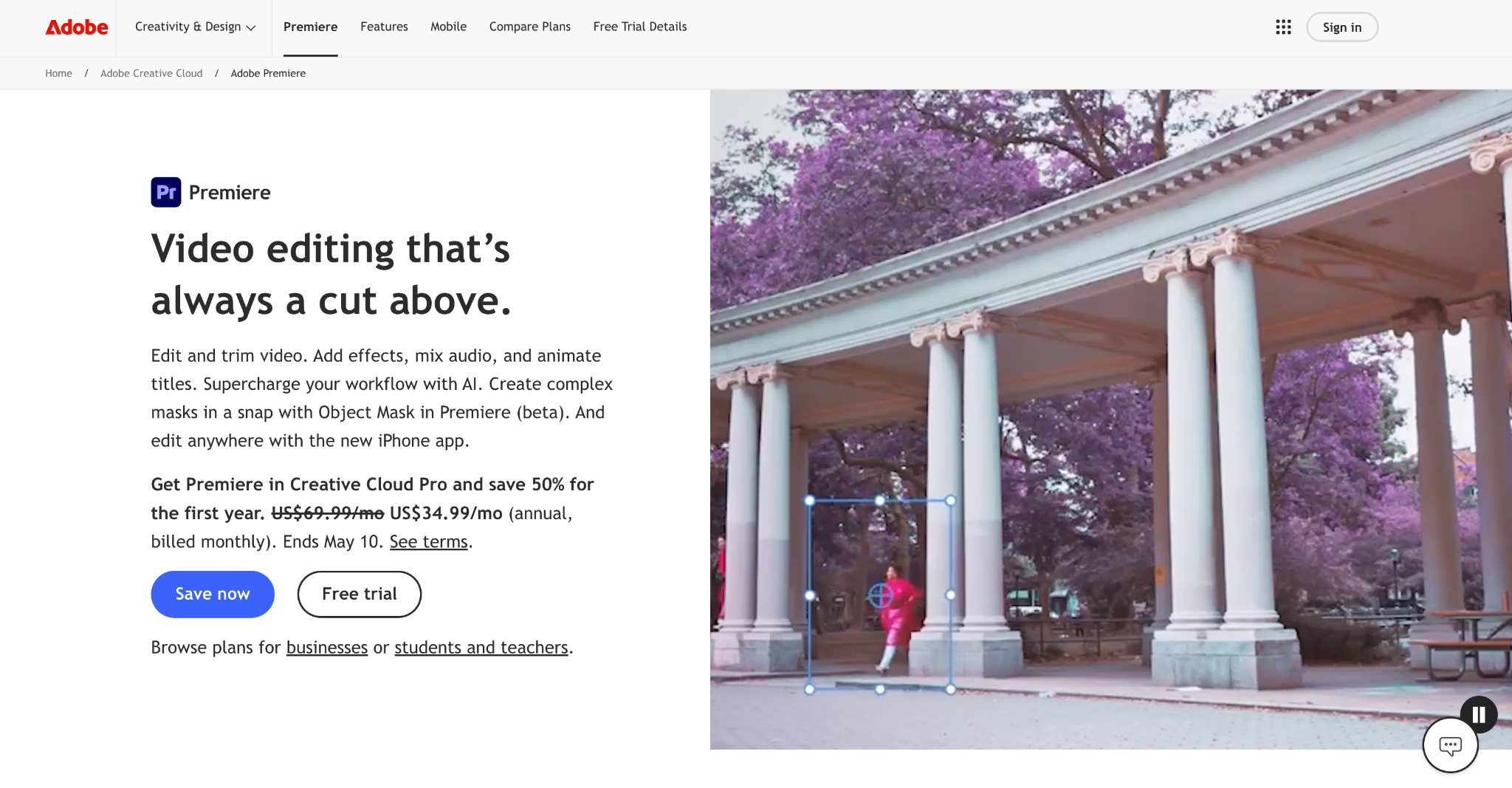
Adobe Premiere Pro is still one of the safest choices for professional editors, agencies, YouTubers, and teams. It works on Windows and macOS, handles many file types, and connects well with After Effects, Audition, Photoshop, and Frame.io.
For YouTube video editing, Premiere Pro makes sense when your projects include interviews, voiceovers, captions, B-roll, brand assets, and repeat revisions. It is built for people who edit often and need a flexible timeline.
Text-Based Editing is one of Premiere Pro’s most useful tools. You can work from a transcript, remove awkward pauses, find quotes faster, and build rough cuts from spoken words. This is a big time saver for podcasts, tutorials, webinars, and talking-head videos.
Premiere Pro also has strong multicam editing, captions, color tools, audio cleanup, and templates through the Adobe system. If your work involves motion graphics, the link with After Effects is a major advantage.
Pros: Premiere Pro fits many workflows. It can handle social clips, ads, documentaries, interviews, and training content without feeling boxed in. It is also easy to find tutorials, presets, plug-ins, and editors who already know the software.
Cons: The subscription model is the biggest downside for many solo creators. It also needs a decent computer to run smoothly, especially with 4K footage, effects, and long timelines. If you only make simple clips a few times a month, Premiere Pro may feel heavier than necessary.
https://www.movavi.com/tools/free-online-video-editor-no-watermark/
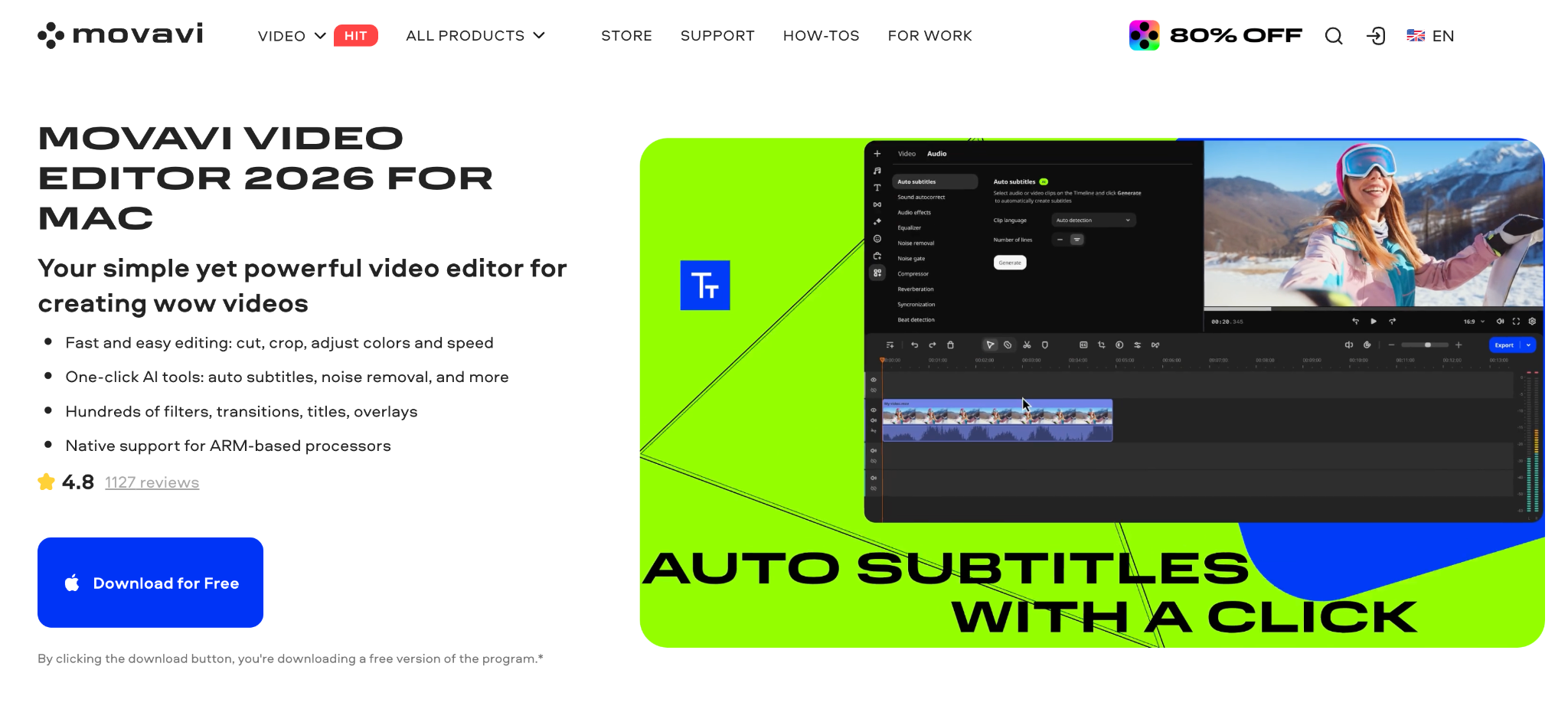
Movavi Video Editor is the easiest option in this list for beginners who still want a proper desktop editor. It runs on Windows and Mac, has a clean timeline, and does not bury basic tasks under too many menus.
It is a good fit for social videos, family clips, tutorials, small business content, course lessons, and beginner YouTube channels. If you have outgrown an online video editor but do not want software that feels technical from the first screen, Movavi makes sense.
Movavi Video Editor focuses on common editing jobs: cutting, trimming, adding music and text, adjusting speed, using transitions, and exporting in popular formats. Its AI tools are practical for everyday videos: auto subtitles help with social clips and course material, noise cleanup improves spoken audio, smart vertical reframing helps turn horizontal footage into short-form content while keeping the subject centered. There’s also silence removal that can shorten a recording without cutting every pause by hand.
Pros: Movavi Video Editor has a short learning curve, which matters if you want to create videos without spending days studying the interface. It also suits less powerful computers. Templates, filters, stickers, titles, and simple AI tools help beginners make a clean video faster.
Cons: It is not meant for advanced color grading, complex sound design, or large studio-style projects. Editors who need deep control over every technical detail will eventually want something different.
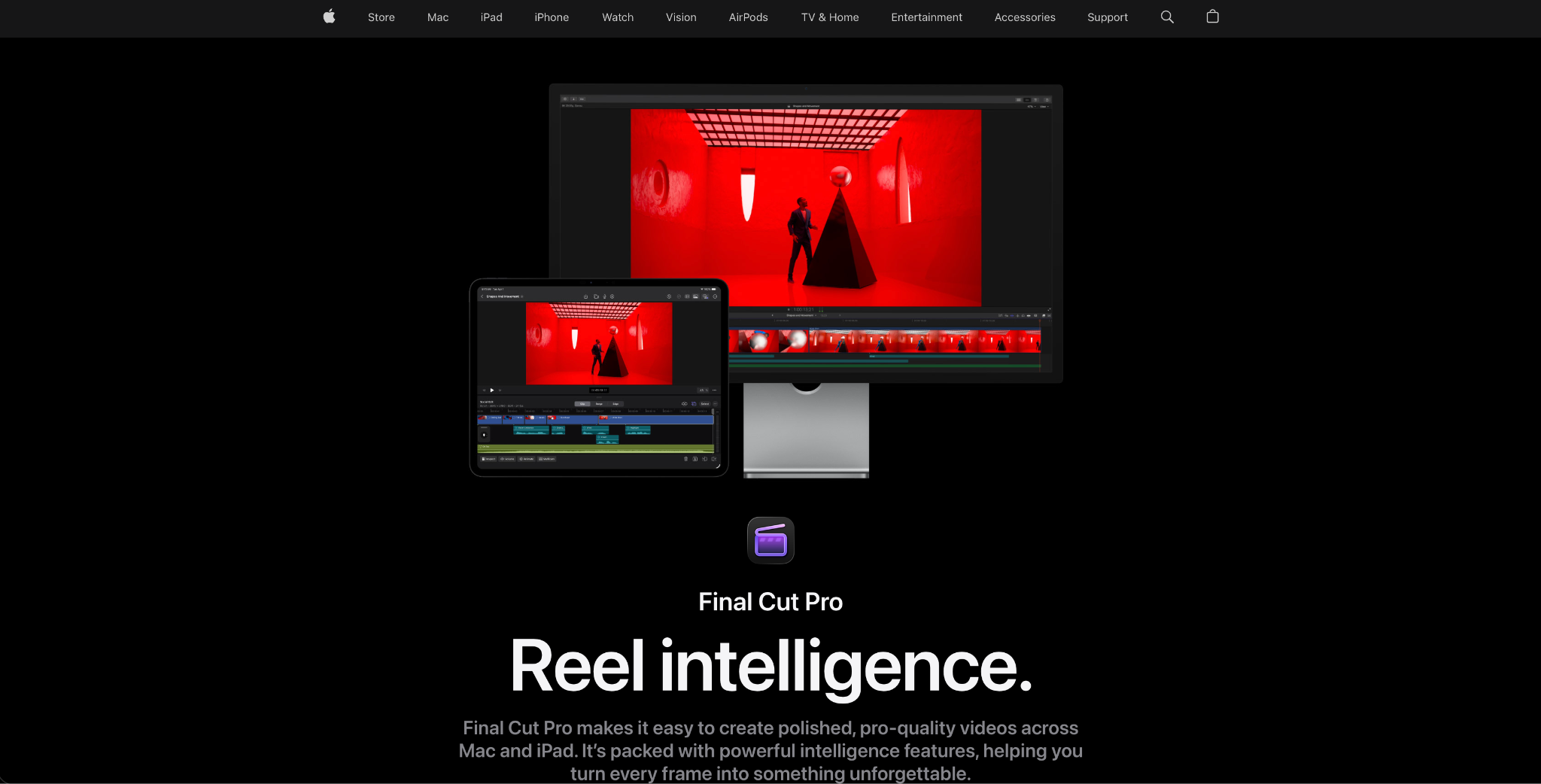
Final Cut Pro is Apple’s main choice for editors who work on Mac. It is fast, stable, and built around a timeline that feels different from Premiere Pro or Resolve. Some editors love the Magnetic Timeline because it keeps clips organized while trimming and rearranging scenes. Others need time to adjust.
If you want Mac video editing software and prefer a one-time purchase over a monthly plan, Final Cut Pro is one of the strongest options.
Final Cut Pro performs very well on modern MacBooks and Mac desktops. It handles large files smoothly, exports quickly, and works well with Apple formats and hardware.
Its newer tools, including automatic captions, object masking, transcript search, and visual search, are useful for creators who manage lots of footage. It is especially good for vloggers, documentary editors, music video creators, and Mac users who want speed without building a complex setup.
Pros: Final Cut Pro is fast on Mac and has a clean interface once you understand its timeline logic. The one-time pricing appeals to creators who dislike ongoing software bills. It also works well as a step up from iMovie.
Cons: It is Mac-only. That alone rules it out for anyone who needs video editing software for Windows. Its timeline can also feel strange if you learned editing in Premiere Pro or DaVinci. Some advanced team workflows are smoother in Adobe’s system.
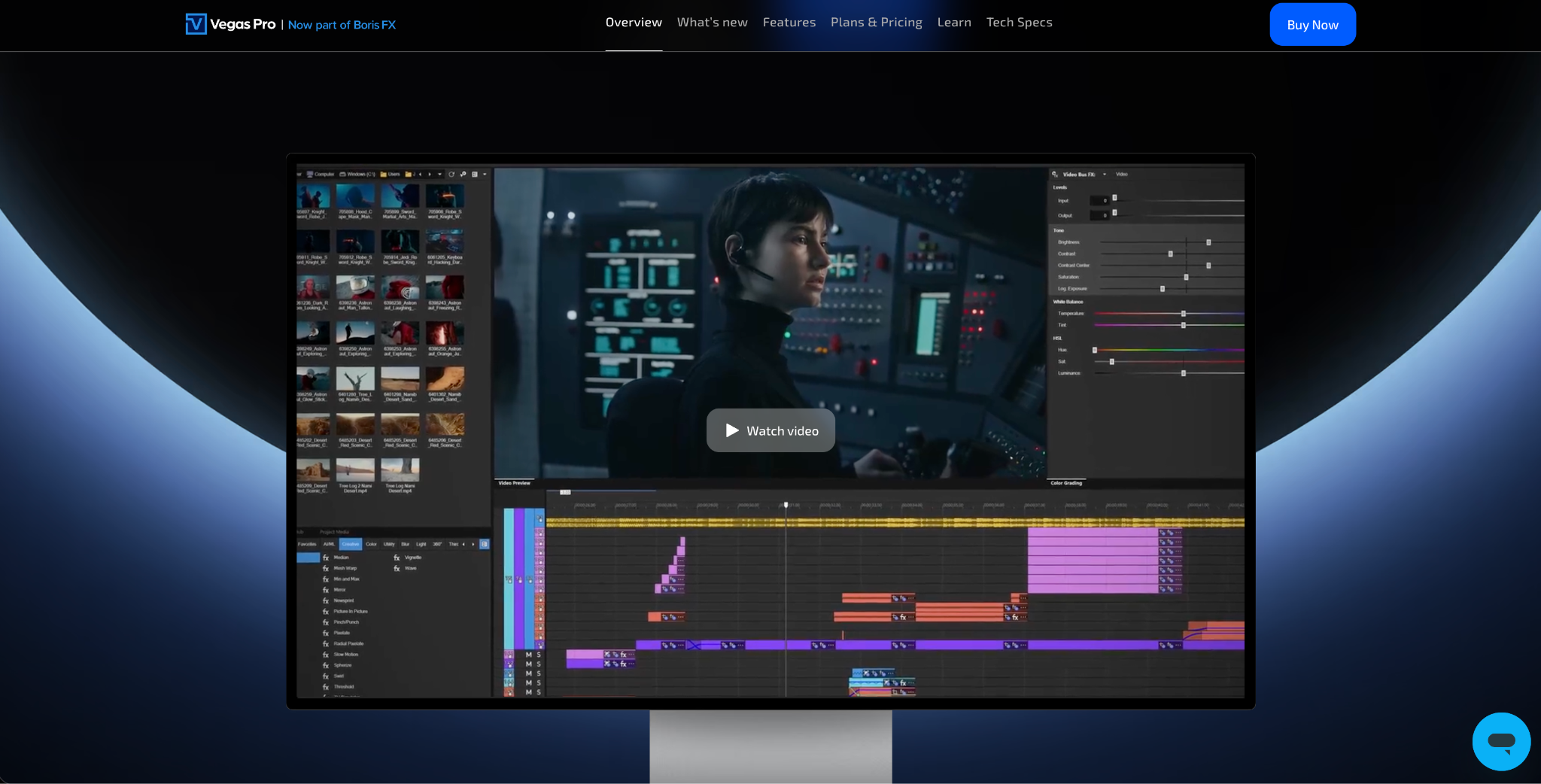
Vegas Pro is a Windows editor with a long history, especially among creators who like fast timeline editing and strong audio tools. It is now part of Boris FX, which gives it closer ties to visual effects and plug-in tools.
If you search for video editing software for PC and want something more advanced than beginner editors, Vegas Pro is worth considering. It is especially comfortable for editors who work with spoken content, music, podcasts, event videos, and multi-track timelines.
Vegas Pro is known for its flexible timeline. You can move quickly, trim without too many steps, and work with audio in a way that feels natural if you come from music or podcast editing.
Recent versions include text-based editing, speech-to-text, automatic subtitles, multicam tools, motion tracking, GPU support, and built-in titling options. The audio side remains one of its better strengths compared with many standard editors.
Pros: Vegas Pro is fast for hands-on timeline work. It gives you strong audio control inside the editor and offers both subscription and perpetual license options.
Cons: Vegas Pro is Windows-only, so Mac users should look elsewhere. It also has a smaller learning community than Premiere Pro or Resolve. Some advanced effects and extras are tied to higher plans, so check the exact version before buying.
invideo Editor is a professional, multitrack video editor that runs entirely in the browser, with an AI assistant editor built in. When you upload raw footage, it lands directly on the timeline. The assistant watches the clips first to understand who is on screen, what is being said, and which takes are clean. It then builds an editable first cut for you by choosing the best takes, removing flubs, silences, and filler words, and placing audio and video on separate layers. If you give it a script, it even flags lines that were never recorded.
You direct the assistant in plain language. It can switch between camera angles in a multicam shoot based on who is speaking, search your footage for a specific moment or emotion, match the pacing of a reference video, generate or pull missing B-roll, and add subtitles, chapter markers, and lip-synced dubbing. Every edit it makes appears as a normal clip on the timeline, so you can move, trim, or undo anything by hand.
For manual work, invideo Editor includes dedicated rooms for editing, color, and audio. You get keyframes with custom easing, color wheels, curves, LUTs, a full audio mixer, motion graphics, transitions, and Premiere-style shortcuts. Teams can edit together in the same project, and you can export as MP4 or hand the project off to Premiere Pro, Final Cut Pro, or DaVinci Resolve with your cuts intact.
Pros: The manual editor is free, with no watermark and no install required. The AI assistant removes the slowest parts of editing, like logging footage, picking takes, and cutting silences, while you keep full control of the final cut. Export to Premiere, Final Cut, and Resolve makes it easy to fit into an existing workflow.
Cons: The AI assistant and generative features use credits, so heavy agent use adds cost. Being browser-based, it depends on a stable internet connection, and since it launched in 2026, it has a smaller plugin ecosystem than long-established desktop editors.
The right editor depends on your current bottleneck. Pick DaVinci Resolve if you want deep color, audio, and finishing tools without a monthly fee. Pick Adobe Premiere Pro if you work with transcripts, client revisions, and other Adobe apps. Once the final video is exported, Media2URL can be useful when you need to share it through a simple link. Pick Movavi Video Editor if you want an easy to use editor for everyday videos, social clips, and beginner projects. Pick Final Cut Pro if you edit on Mac and care about speed. Pick Vegas Pro if you work on Windows and want a flexible timeline with strong audio tools.
 AI tools to find & convert leads.

 Send emails at scale