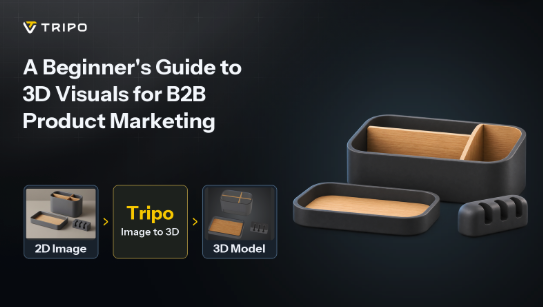
B2B products are not always easy to explain in a short outreach email. A new device may have an unfamiliar shape. A furniture system may make sense only when viewed from several sides. Packaging, retail displays, equipment concepts, and trade-show ideas can also lose something when reduced to one flat image.
This guide follows a modular desk organizer from a Tripo draft to a B2B outreach email. Review the draft, turn one useful angle into a still image, and host it on a landing page. Then use Anyleads to share that page with buyers who need to see it.
Start with the detail a buyer needs to see. Some products are easy to explain with one still image.
Start with the sales question, not the software
Pick a question you hear from buyers. A facilities buyer may want to know how much desk space an organizer takes up. A retailer might ask how the same set looks on a shelf. Those questions call for different views of the product.
Show the full arrangement when placement matters. Use a close-up to highlight the joint, component, or surface finish the buyer has asked about. On a first email, one angle and a short explanation may be enough.
Pick the buyer before making the visual. For a retailer, an angled view that shows how the tray, organizer, and cable holder fit together may be enough.
Match the input to the stage of the product
For a product that exists only as an idea, start with Text to 3D. Describe the shape and the parts you want to discuss. A rough concept can give a team something to react to before the design is settled.
Use Image to 3D when you have an illustration or photo you are allowed to use. Tripo has to infer anything the image hides, such as the underside of an organizer. For multi-view input, use matching front, side, or rear images of the same organizer in the same configuration. Use only dimensions verified by the product team. The generated model is a visual reference.
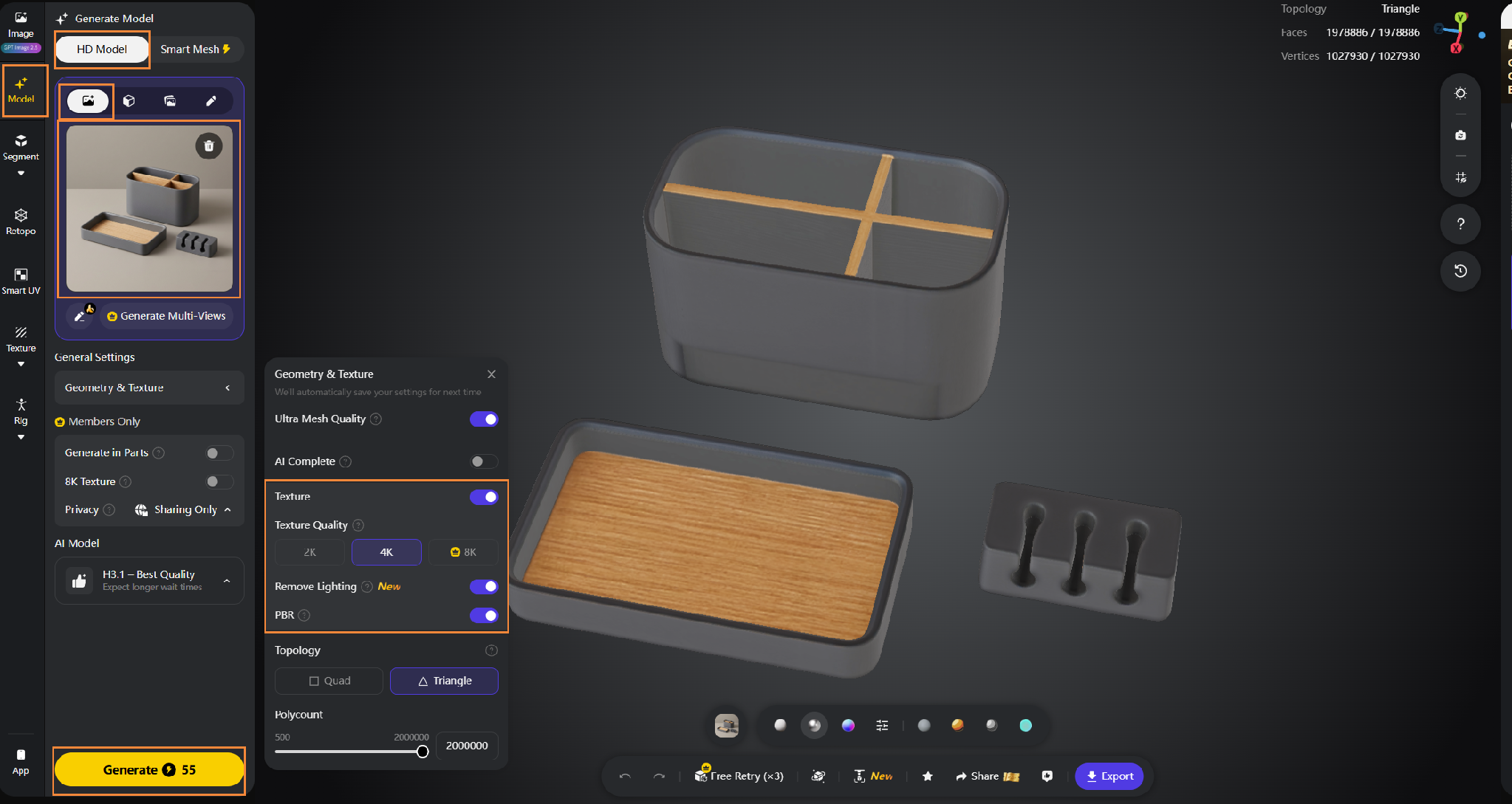
Early 3D models can help you choose what to show. Treat the model as a visual draft until the people who know the product approve it. Pull materials, availability, and performance details from the current product sheet.
Use a different visual at each buyer stage
The first outreach message should be easy to scan. A lightweight rendered image may work better than a large attachment or an unexplained 3D link. It can show the overall form and lead to a focused landing page.
On the landing page, add side and rear stills when buyers need to see how the pieces fit. If rotation helps, export a compatible file and add a 3D viewer to the page. Test loading and touch controls on a phone.
During a sales call, the presenter can turn the object while discussing placement, finishes, or configuration. A near-launch page needs tighter control because buyers may read every visible detail as real.
Build the handoff into an Anyleads campaign
Once the approved visual is live on your landing page, paste its URL into an Anyleads outreach draft. Send a test message to your own inbox and open it on a phone. Check that the link opens the right page and that its first image answers the question in the email.
For a retailer, try a single invitation: “See how the organizer set fits on a shelf.” Link to the shelf view. Use a follow-up to answer a different question, such as which pieces are available to order.
Keep product truth separate from visual suggestion
A seam on a generated organizer may look like a drawer. Confirm that it opens before calling it a drawer in the email. If the finish is still undecided, label the visual as a concept and leave material claims to the approved product sheet.
Ask the product owner to check the visible details and confirm that your team can use the reference image. Have someone open the landing page on a phone to see whether the image and text still make sense together.
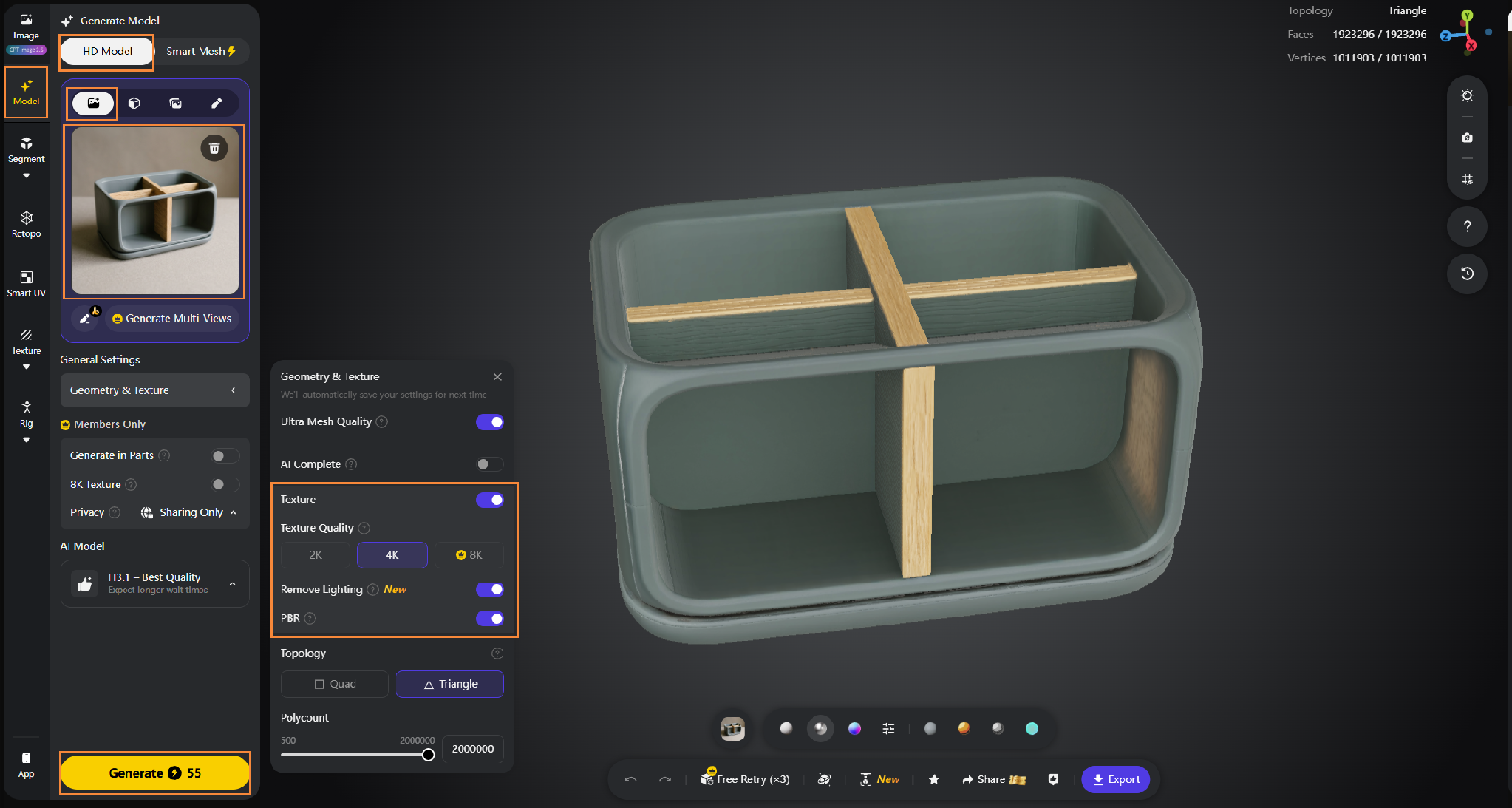
The Tripo screenshot below shows a draft of the modular organizer. Use the approved product sheet to confirm the actual dividers, finishes, and pieces available to order.
Think in visual families, not one model
Give related pieces a shared look. A desktop organizer, a tray, and a cable holder can use the same background and camera height so buyers can tell they belong to one range. Give each piece its own view when a buyer needs to understand where it fits.
Use placeholder artwork for internal layout reviews, then replace it with the approved product visual before sending.
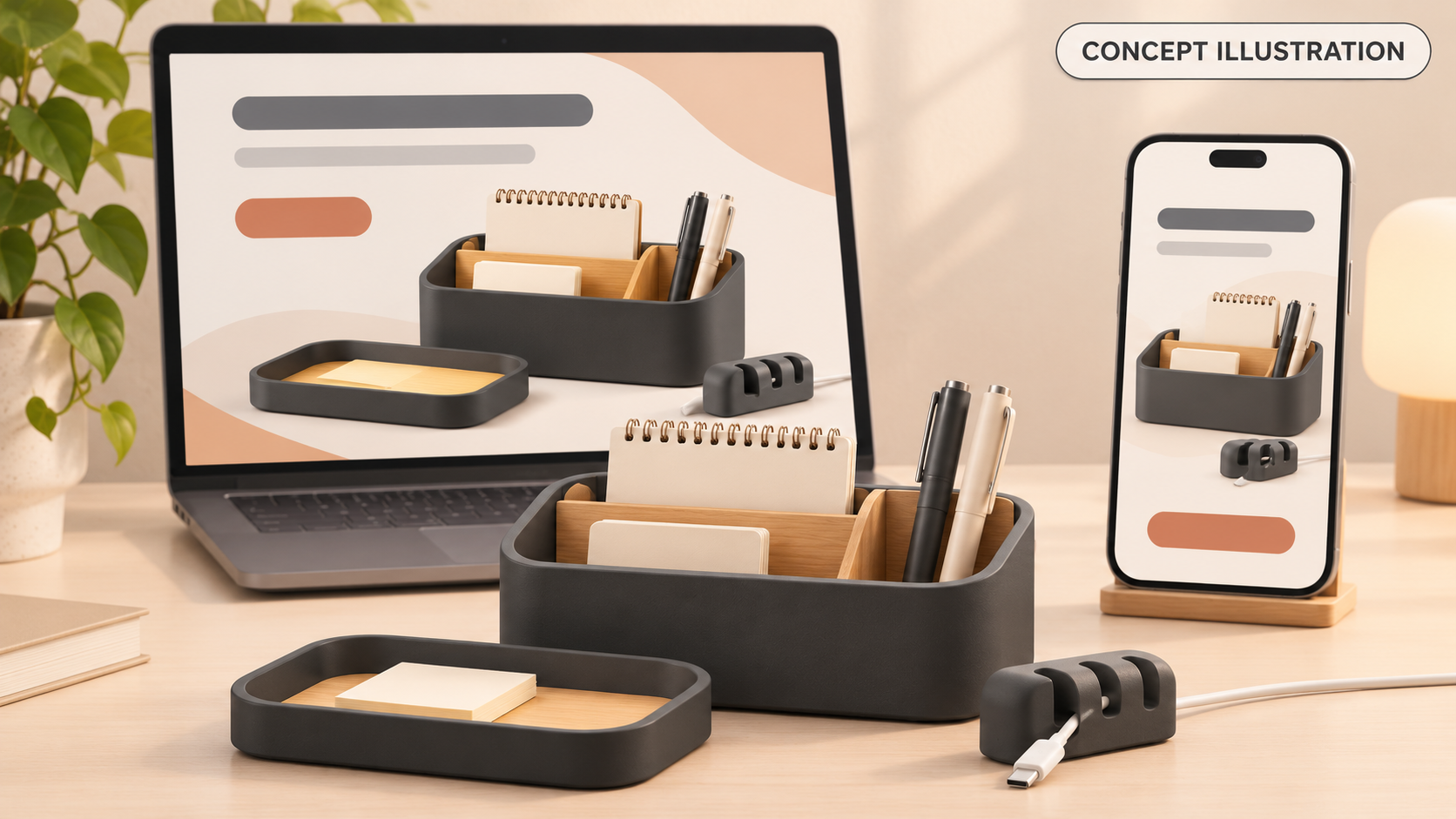
The illustration shows how the organizer family could appear on desktop and mobile. Check the actual page on both screen sizes before sending.
Frequently asked questions
Can 3D visuals replace product photography or CAD?
For a concept or a first sales draft, a 3D visual may be enough. Use product photography when buyers need to see the actual finish. Use approved CAD data or engineering drawings when buyers need verified dimensions or technical details.
Should a cold email contain an interactive 3D model?
Usually, a lightweight image and a focused landing-page link are easier to understand. Put the interactive view on the landing page when rotation helps answer a buyer’s question.
Which products work well with this approach?
Clear external forms are easier starting points. Examples include small hardware, furniture, packaging, retail displays, accessories, and equipment concepts.
What should the team approve before outreach begins?
Confirm the visual, product claims, concept labeling, reference-image rights, public information, mobile page behavior, and the audience receiving the campaign.
 AI tools to find & convert leads.